
Virtual Barrel User Guide
Overview
The Virtual Barrels feature allows venues to configure and run electronic prize draws directly from the Wymac Kiosk administration interface. Entries can be accumulated automatically through patron activity, and draws can be conducted at any time by an authorised staff member. Each barrel is fully configurable with branding, draw rules, and claim windows.
Barrel Tab
The Barrel tab is where the core configuration of a Virtual Barrel draw is set up.
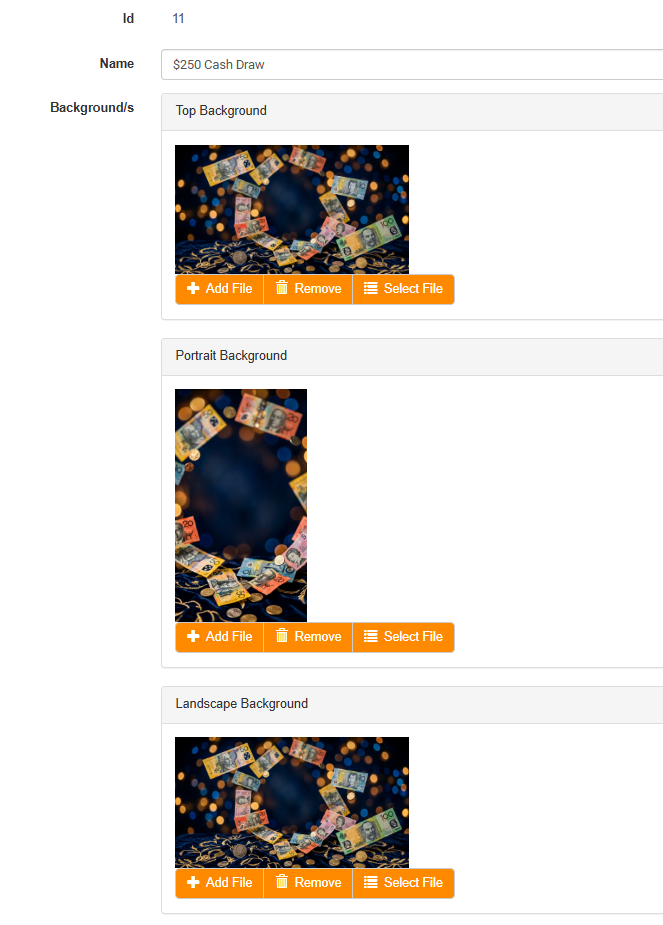
Name
Give the barrel a clear, descriptive name that reflects the draw or prize on offer. This name will appear in the barrel list on the left-hand side of the screen.
Backgrounds
Three background images can be configured for the barrel, each used in different display contexts:
Top Background — displayed at the top of the kiosk screen during the draw
Portrait Background — used on portrait orientation kiosk displays
Landscape Background — used on landscape orientation kiosk displays
Images can be uploaded directly, removed, or selected from the existing file library using the Add File, Remove, and Select File buttons respectively.
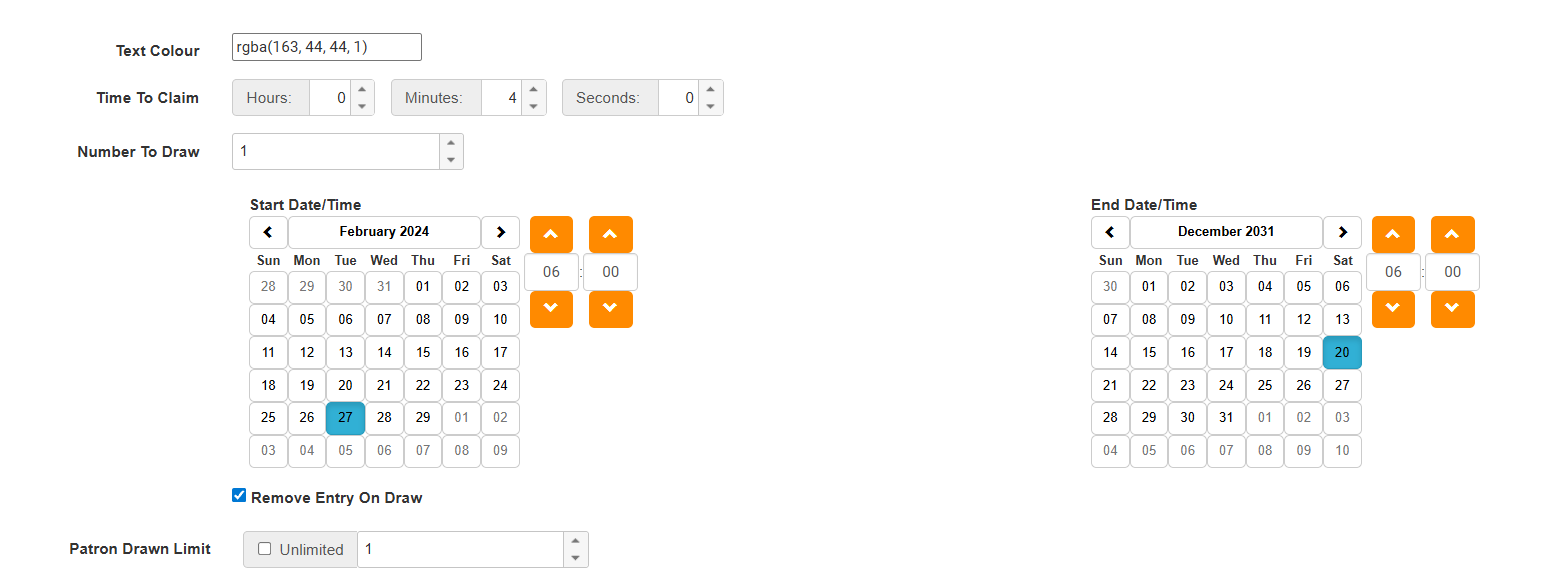
Text Colour
Set the colour of the text displayed over the barrel background using the RGBA colour picker. Ensure sufficient contrast against your chosen background image for readability.
Time To Claim
Defines how long a drawn winner has to claim their prize at the kiosk before the draw result expires. This is set in hours, minutes, and seconds. Ensure this window is long enough for staff to locate and notify the winner.
Number To Draw
Sets how many winners will be drawn in a single draw event.
Start and End Date/Time
Defines the active period of the barrel. Entries can only be accumulated during this window. The barrel will not accept entries outside of these dates.
Remove Entry On Draw
When ticked, a patron's entry will be removed from the barrel once they have been drawn as a winner. This prevents the same patron from winning again in subsequent draws within the same barrel.
Patron Drawn Limit
Sets the maximum number of times a single patron can be drawn as a winner. Tick Unlimited to remove any restriction. Note that this limit only applies within the same draw session — it does not carry across separate draw events.
Enable / Disable
The Disable button at the bottom of the screen deactivates the barrel. A disabled barrel will not display on kiosks or accept entries. Use this to pause or retire a barrel without deleting it.
Kiosks Tab
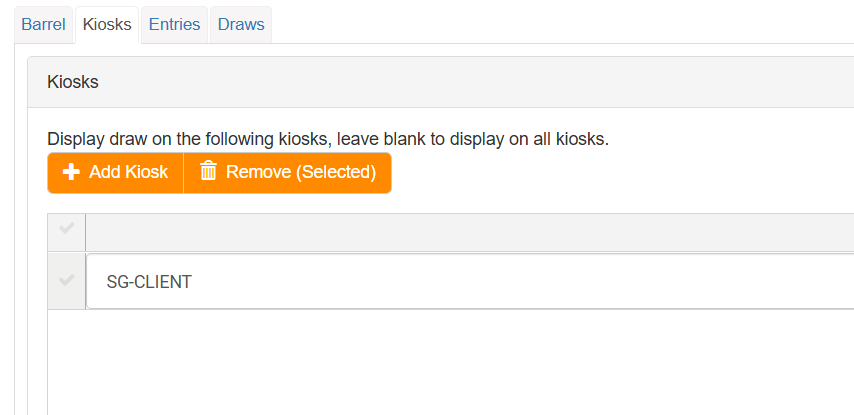
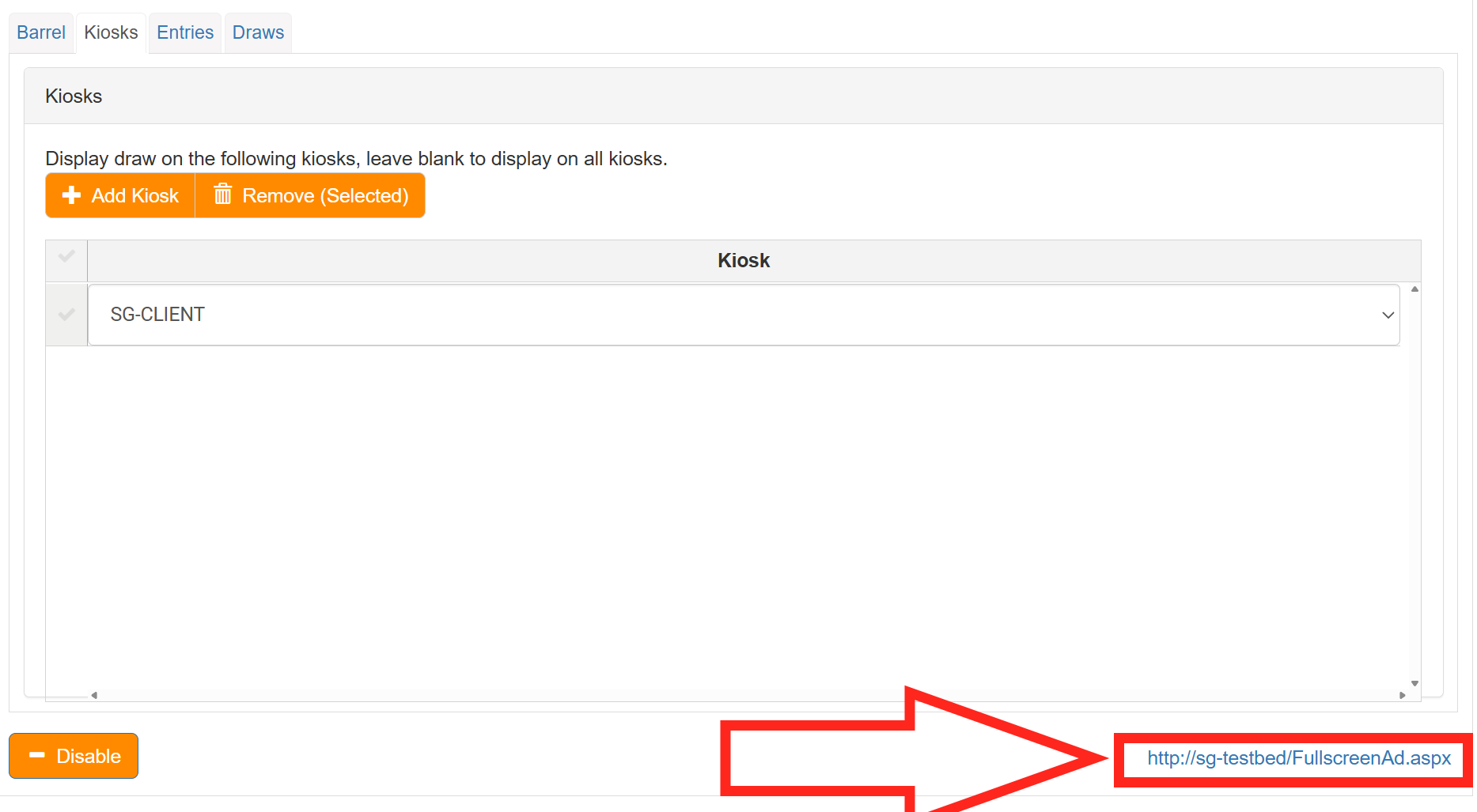
The Kiosks tab allows you to restrict which kiosks will display the draw result screen when a winner is drawn. If no kiosks are added, the draw result will display on all connected kiosks. Adding specific kiosks here limits the winner display to those devices only.
Note: This setting only controls where the winner result is displayed. It has no bearing on which kiosks patrons can use to earn entries into the barrel.
In-House Display Integration
The draw screen can also be pushed to the venue's in-house display system, such as a TV or digital signage screen, without requiring a dedicated kiosk device. A direct URL is available in the bottom right corner of the Kiosks tab, which can be loaded in any browser connected to the venue's network. Both portrait and landscape orientations are supported, optimised for a 1080p monitor. This allows the draw and winner screens to be prominently displayed throughout the venue during a draw event.
Entries Tab
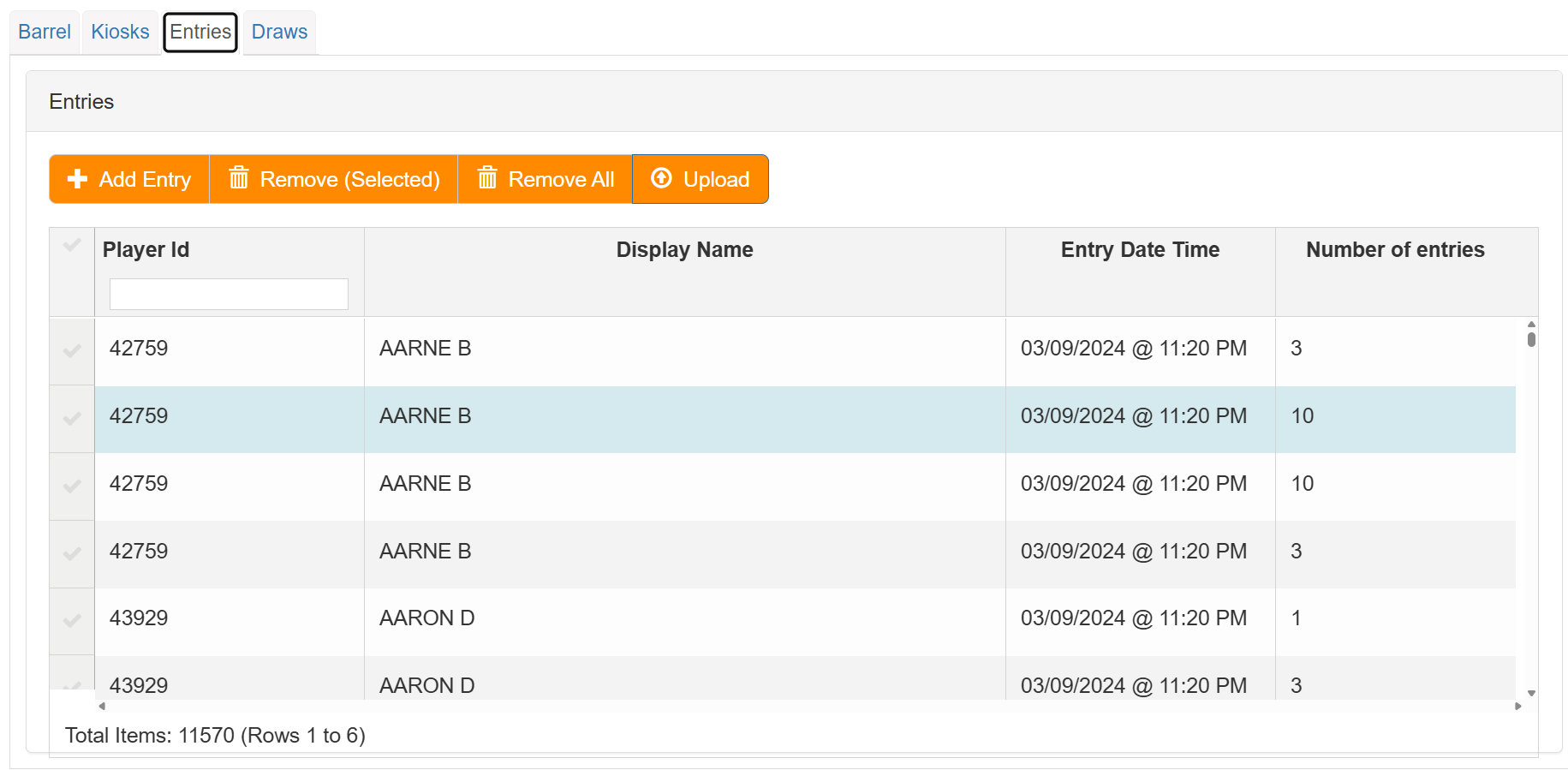
The Entries tab displays all current entries in the barrel, showing each patron's Player ID, display name, the date and time their entry was recorded, and their number of entries. Entries are typically accumulated automatically through patron kiosk activity and promotion configuration.
Entries can also be managed manually from this screen:
Add Entry — manually add a patron entry by Player ID
Remove (Selected) — remove a selected entry from the barrel
Remove All — clear all entries from the barrel
Upload — bulk upload entries via a file, useful for migrating entry data or adding entries from external sources
Note: A single patron may appear multiple times in the entry list, with each row representing a separate entry or batch of entries. The Number of Entries column shows the weight of each entry row in the draw.
Draws Tab
The Draws tab is where draw events are conducted. A draw can either be started fresh as a new draw, or a previous draw can be reviewed and continued.
Existing Draw
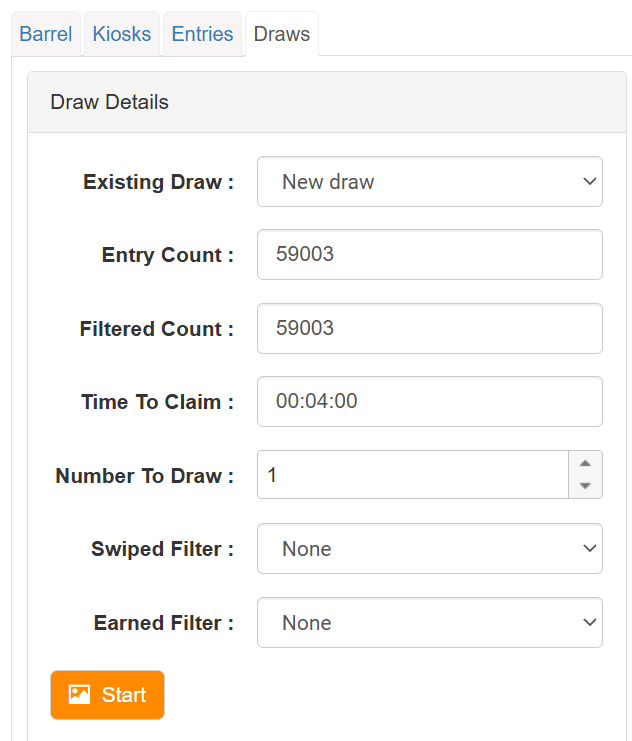
Select New draw to start a fresh draw event, or choose a previous draw from the dropdown list to review its results or continue drawing from it. Previous draws are listed by draw number and date/time.
Draw Details
Before starting a draw the following information is displayed:
Entry Count — the total number of entries currently in the barrel
Filtered Count — the number of entries remaining after any filters are applied
Time To Claim — the claim window configured for this barrel
Number To Draw — how many winners will be drawn
Swiped Filter
Filters the eligible entries to only include patrons who have swiped their card within a specified period. Options include:
None — no filter applied, all entries are eligible
Swiped Today — only patrons who have swiped today are eligible
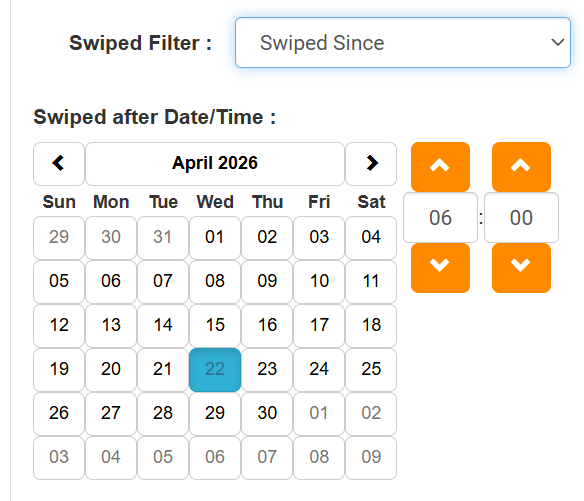
Swiped Since — only patrons who have swiped since a specified date and time are eligible
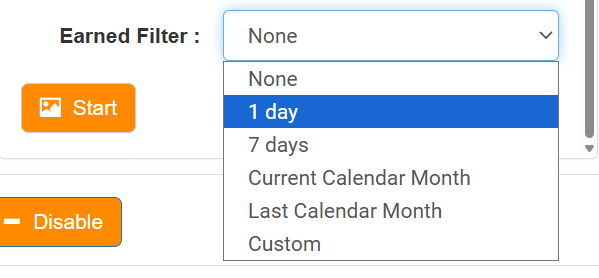
Earned Filter
Filters eligible entries based on when the entries were earned. Options include:
None — no filter applied
1 day — entries earned in the last day
7 days — entries earned in the last 7 days
Current Calendar Month — entries earned in the current calendar month
Last Calendar Month — entries earned in the previous calendar month
Custom — define a custom date range
Tip: Use the Swiped and Earned filters together to ensure your draw rewards actively engaged patrons and meets any promotional requirements.
Starting the Draw
Once filters are configured, click Start to initiate the draw. Connected kiosks will transition to a "Drawing Soon" screen displaying the barrel's promotional background, signalling to patrons that a draw is about to take place.
Draw Results
Once the draw has been initiated, the Draw Results panel on the right will display the drawn winner(s), showing their claimed state, Player ID, player name, and the date and time they were drawn.
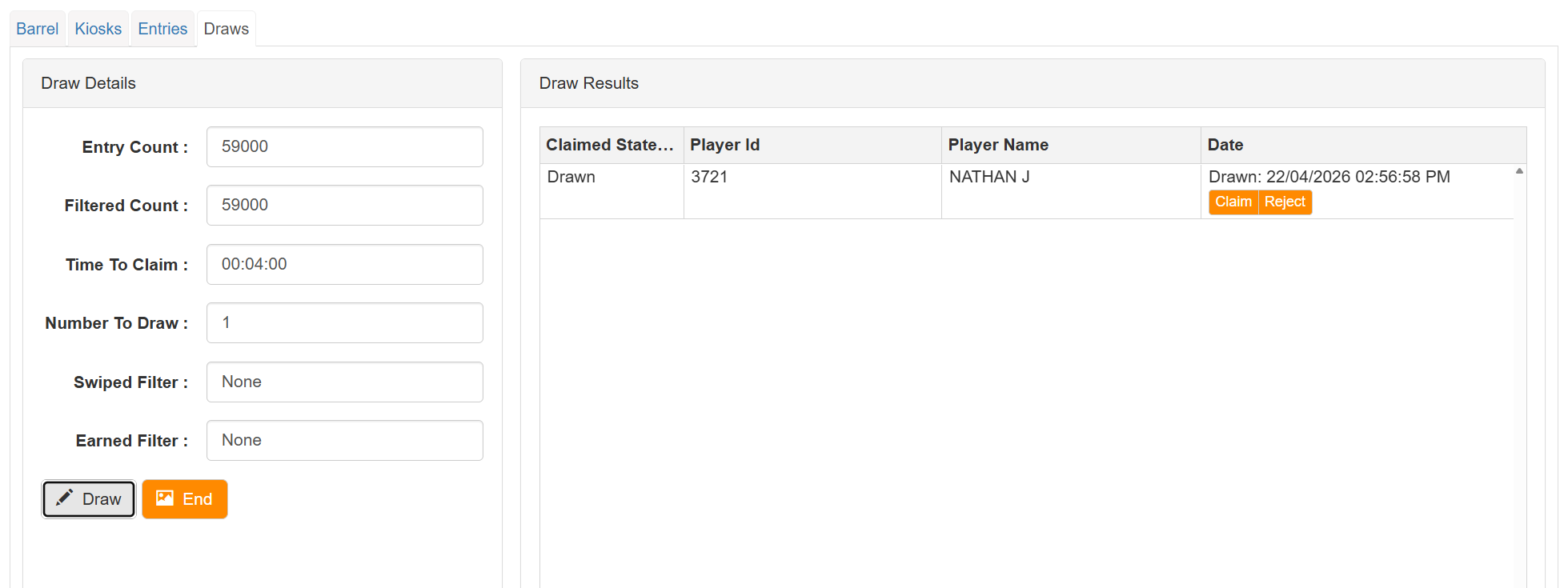
Each drawn result must be actioned by staff using the Claim or Reject buttons:
Claim — confirms the patron has been located and has claimed their prize. The result is highlighted green and a claimed timestamp is recorded.
Reject — used when the patron cannot be located, declines the prize, or is otherwise ineligible. The result is highlighted red and marked as rejected.
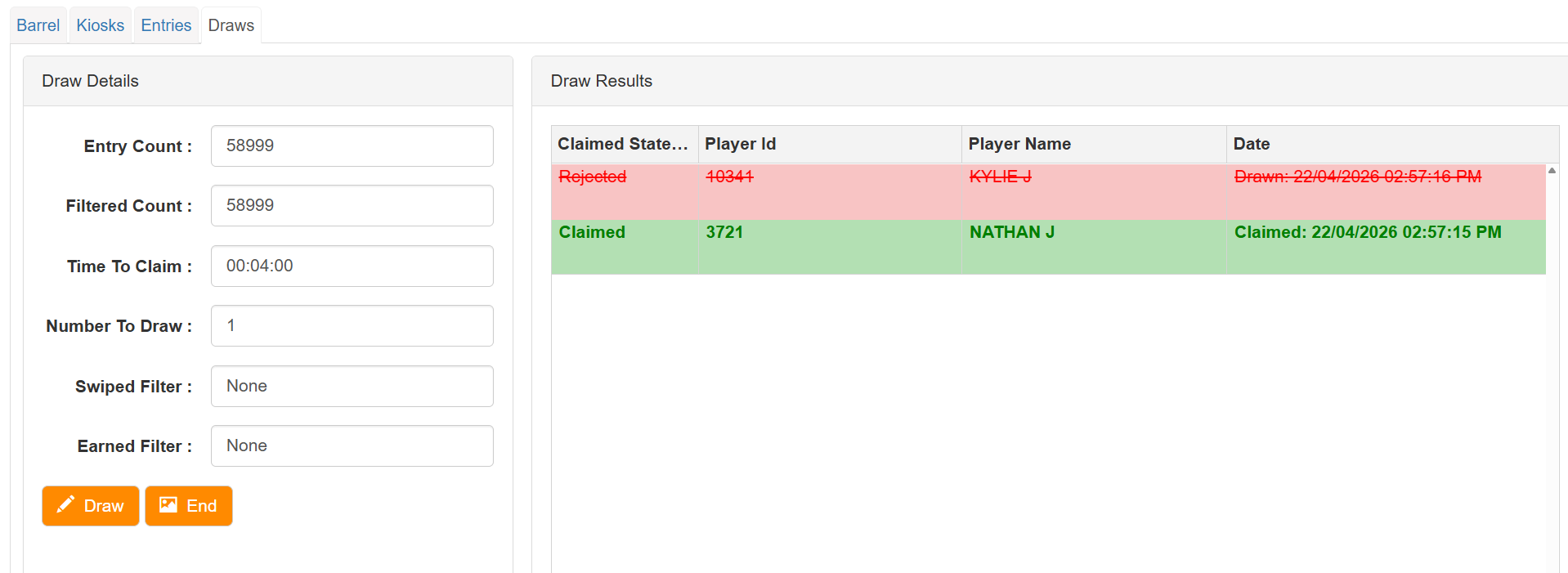
If a winner is rejected, use the Draw button to draw the next eligible entry from the barrel. Click End to close the draw session once all winners have been finalised.
Patron-Facing Kiosk Experience
Once a draw is initiated from the admin interface, the kiosk display automatically transitions to reflect the draw in progress. Patrons in the venue will see the following sequence on the kiosk screen:
Draw Soon Screen
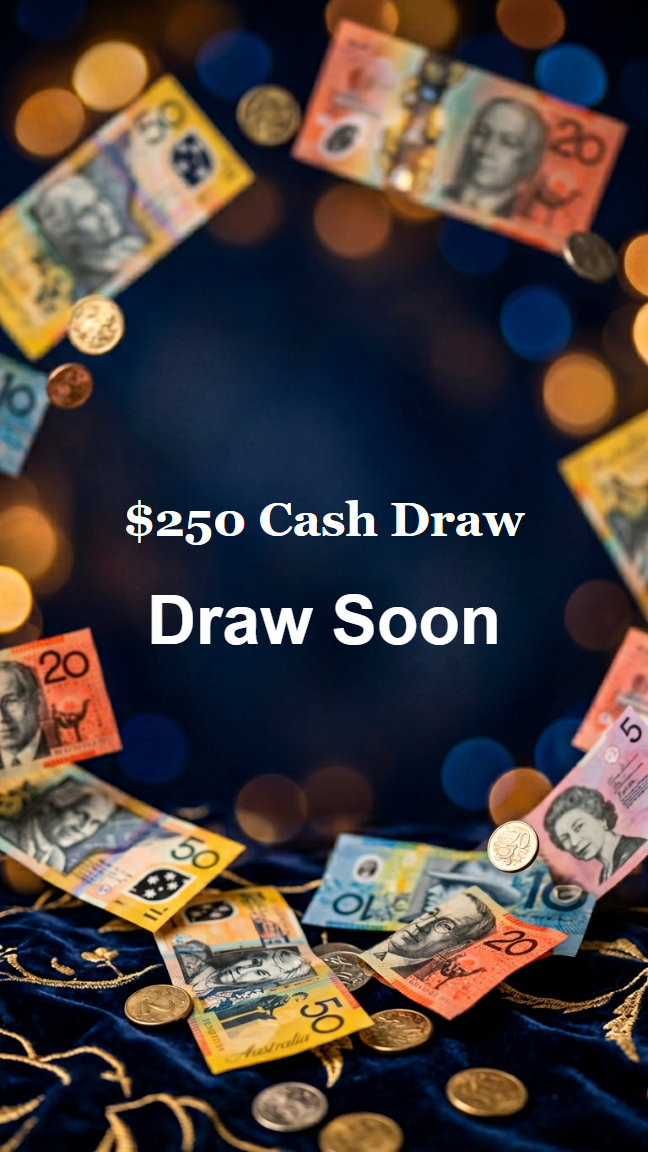
When the draw is started, all configured kiosks display a "Draw Soon" screen, overlaid on the barrel's portrait background image. This alerts patrons that a draw is imminent and builds anticipation in the venue.
Winner Display Screen
Once a winner has been drawn, the kiosk screen updates to display the winner's name, member number, the draw name, and a countdown timer showing how long the winner has remaining to claim their prize. The countdown reflects the Time To Claim configured on the Barrel tab.
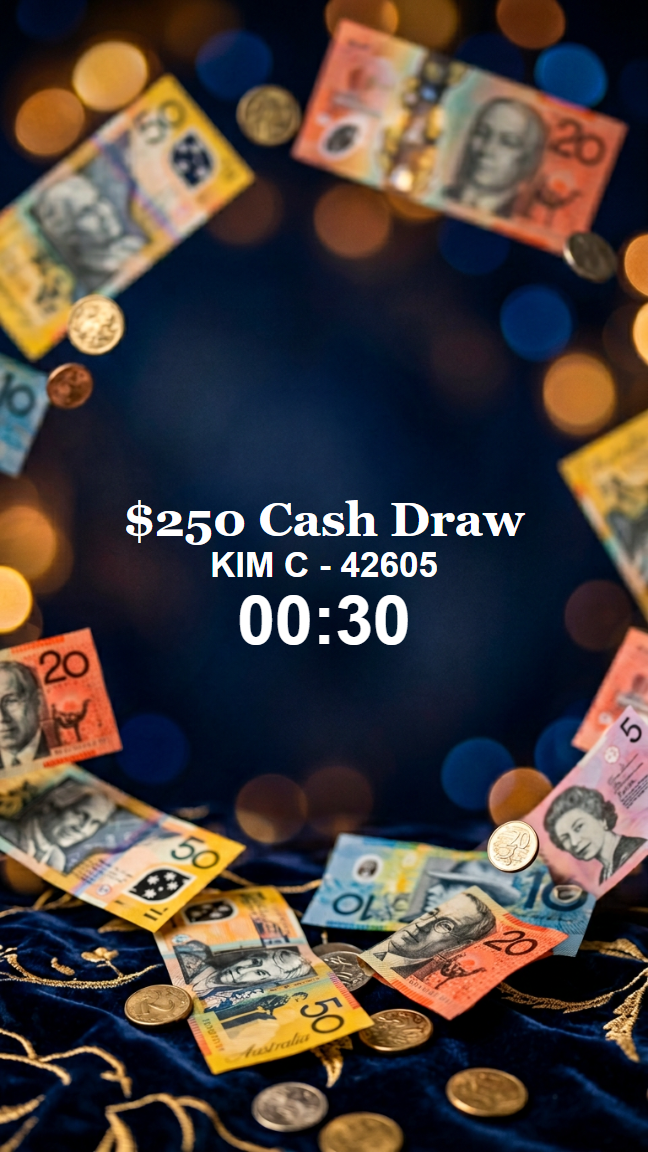
Note: The winner display will remain on screen until the claim window expires or the winner is actioned (Claimed or Rejected) in the admin interface. If the winner is rejected and a redraw is conducted, the kiosk will update to display the new winner automatically.
Once the draw is finalised and ended by staff, the kiosks will return to their normal display.