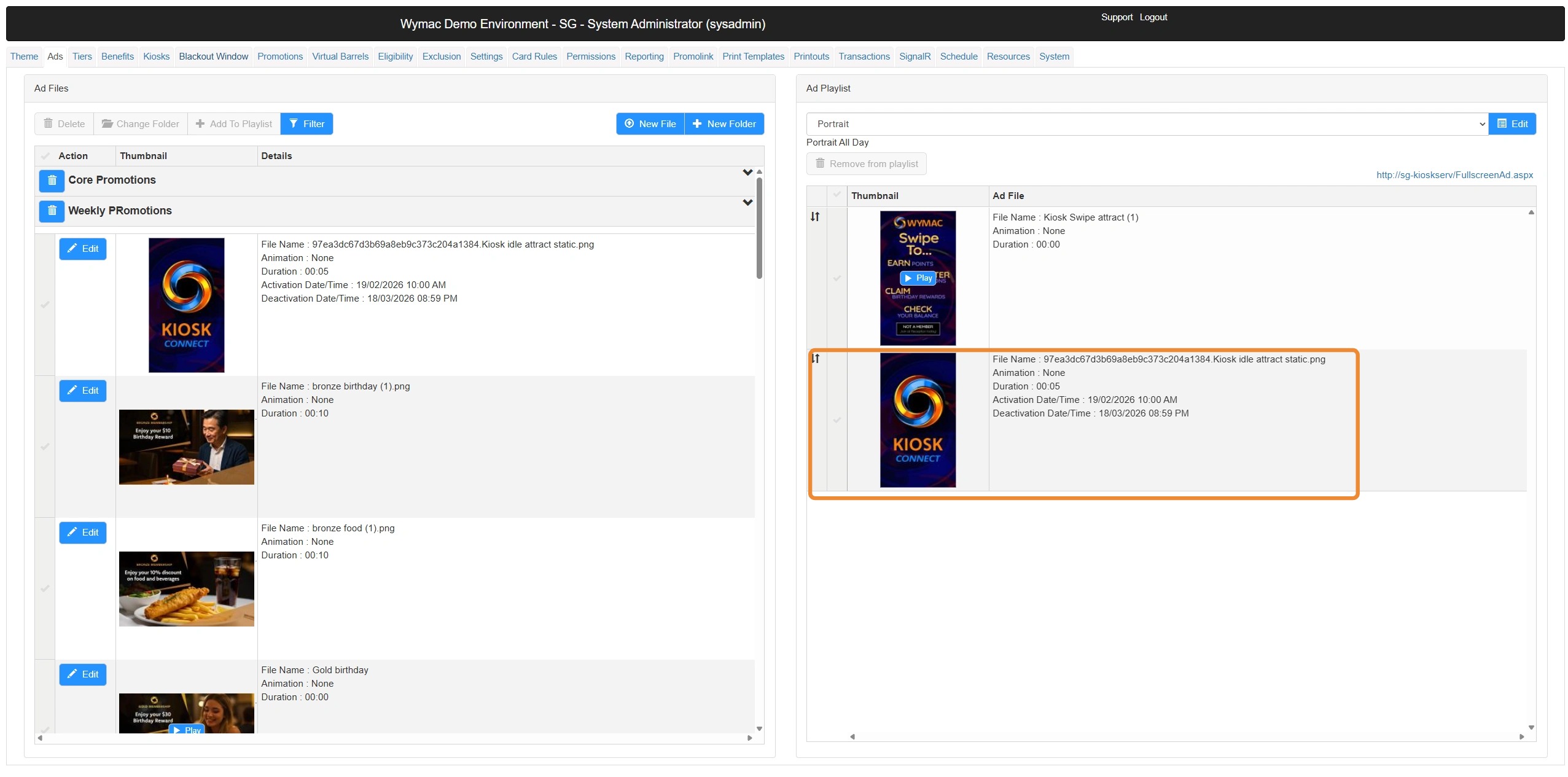
Kiosk | Ads - Upload a new advertisement
1. Navigate to Wymac Kiosk Hub Admin Client
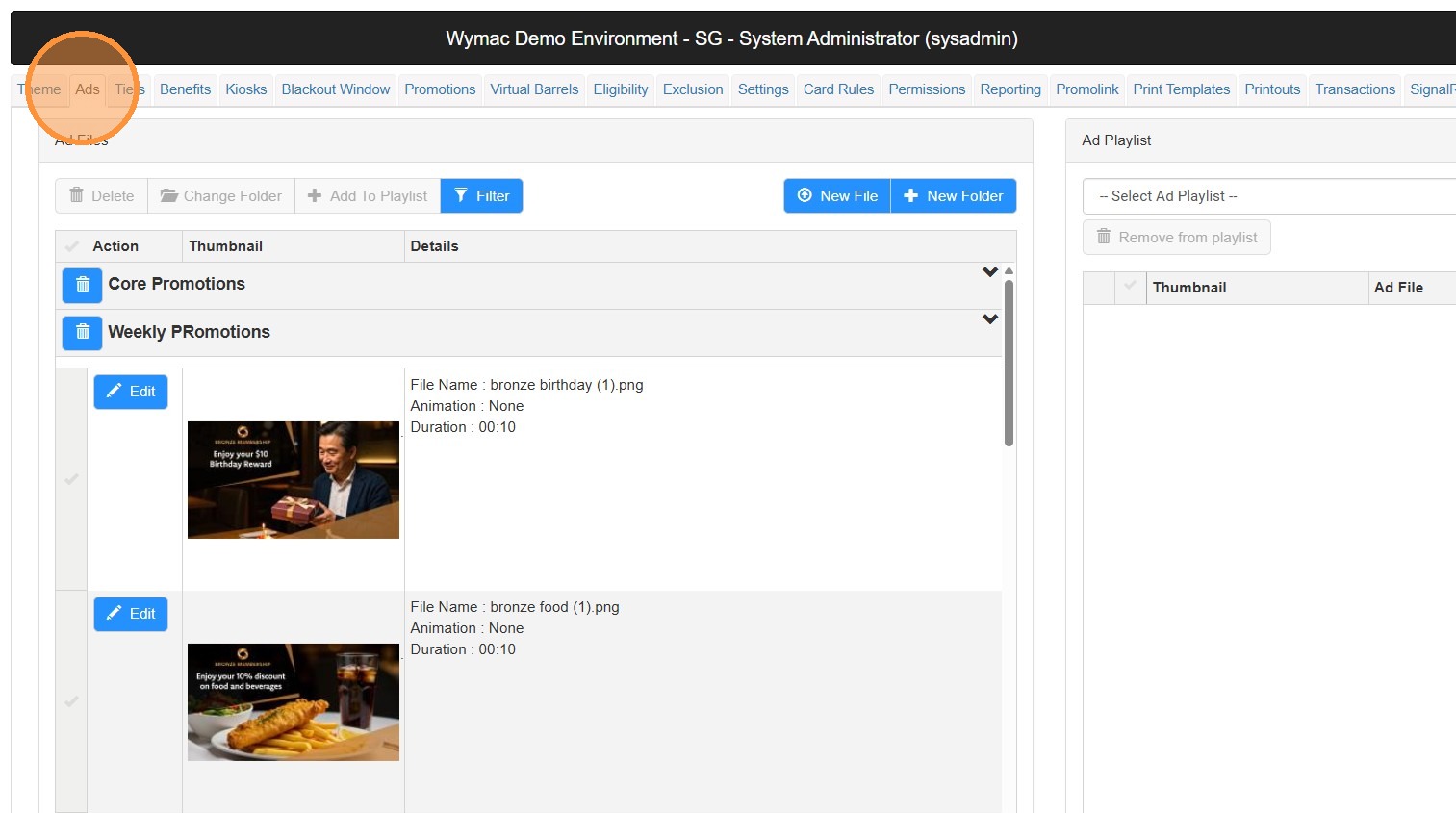
2. Click "Ads"
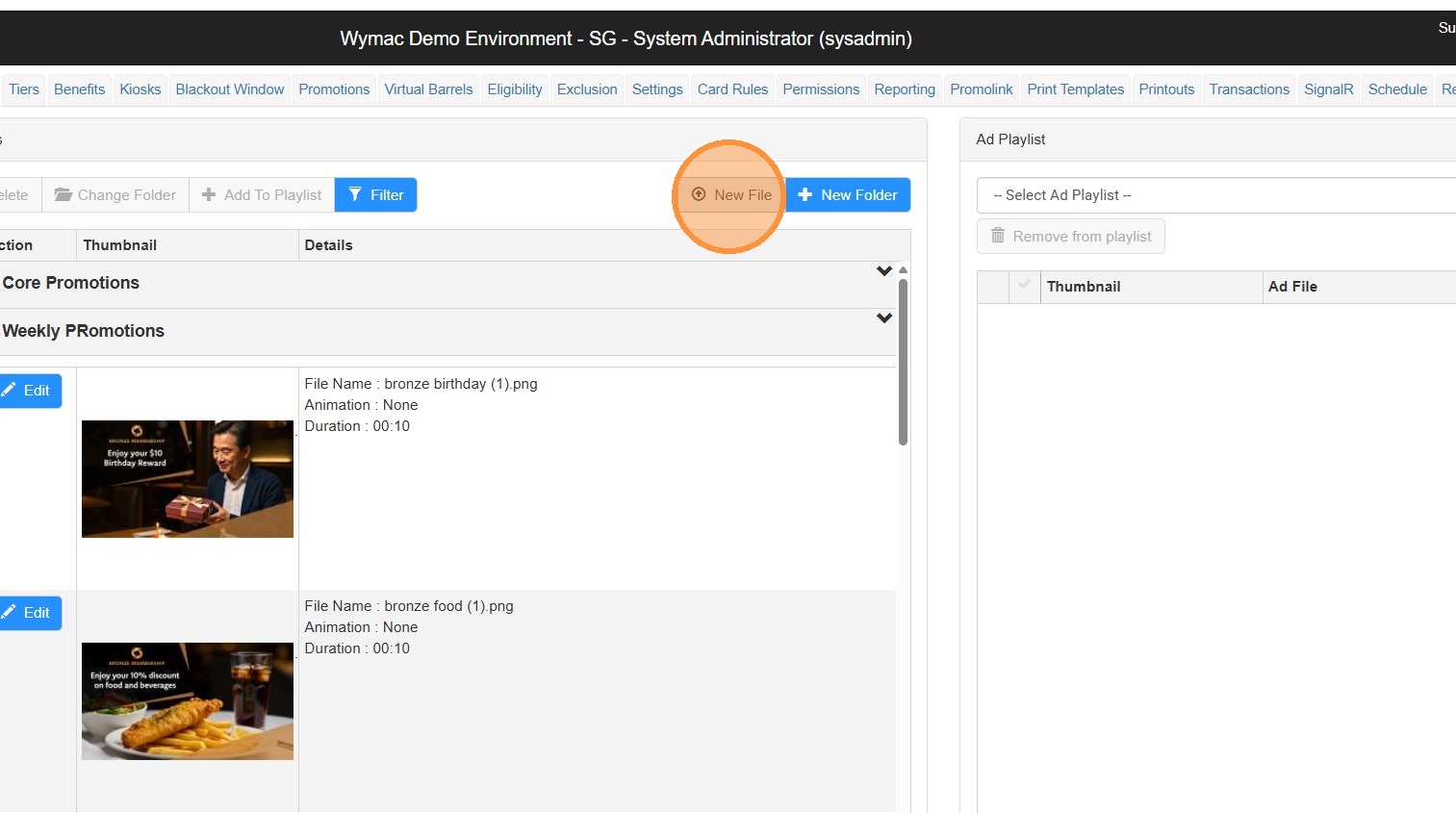
3. Click "New File"
4. Click on the 'Choose File' button. This will open a new window where you can upload your ad file.
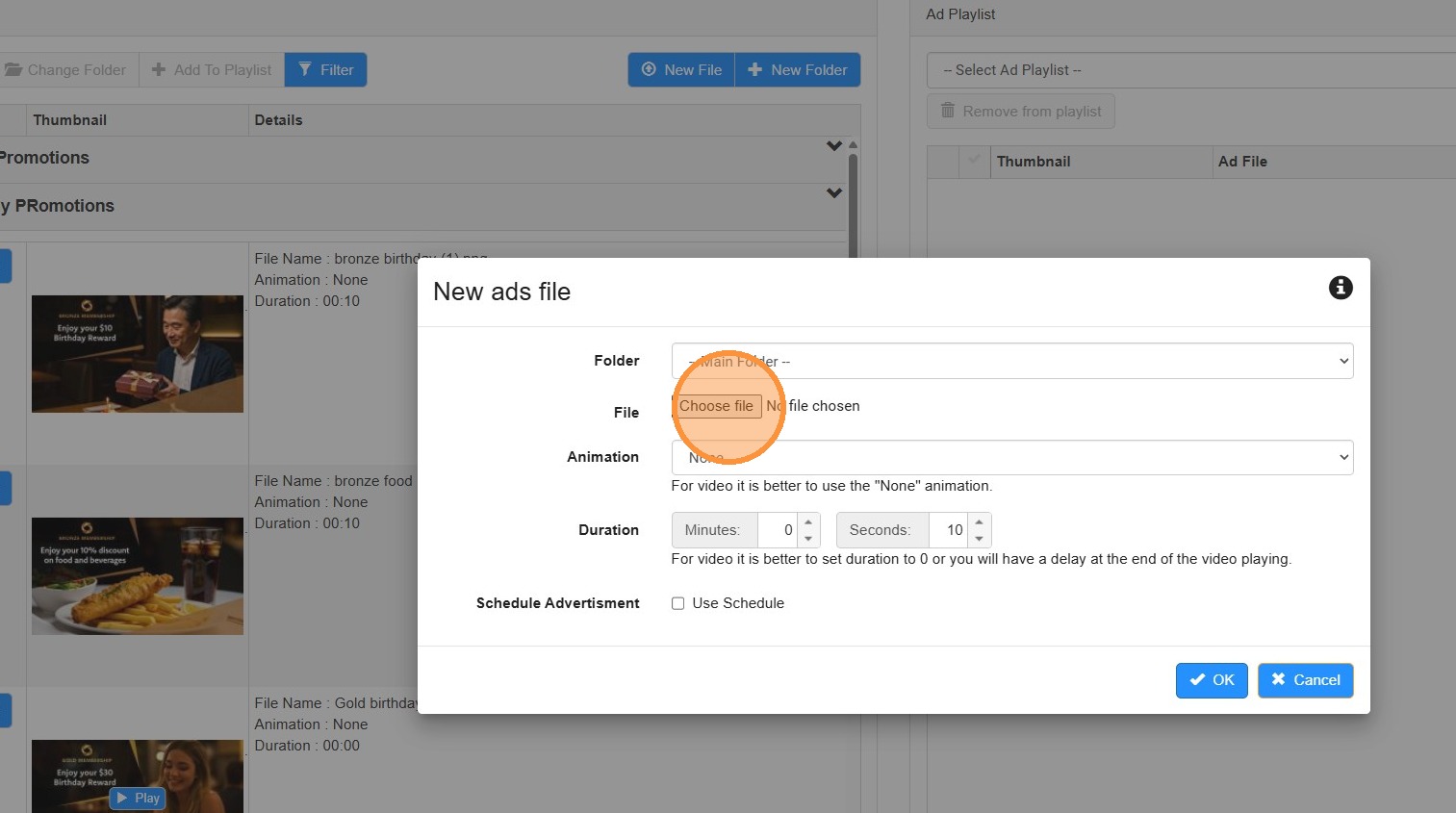
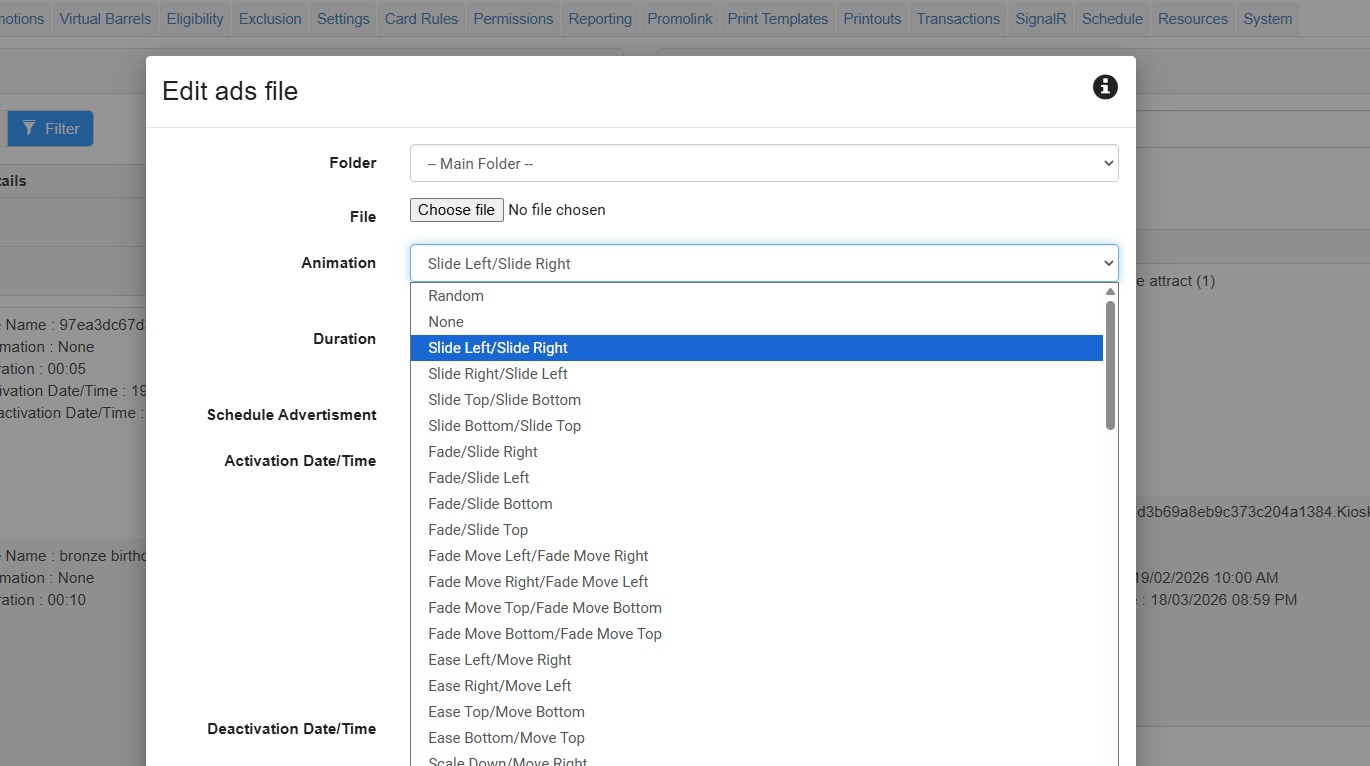
5. Click on the Animation pull down list. Here you can choose the transition effect for this image.
**Please note you can set the default for this value in the Settings Tab
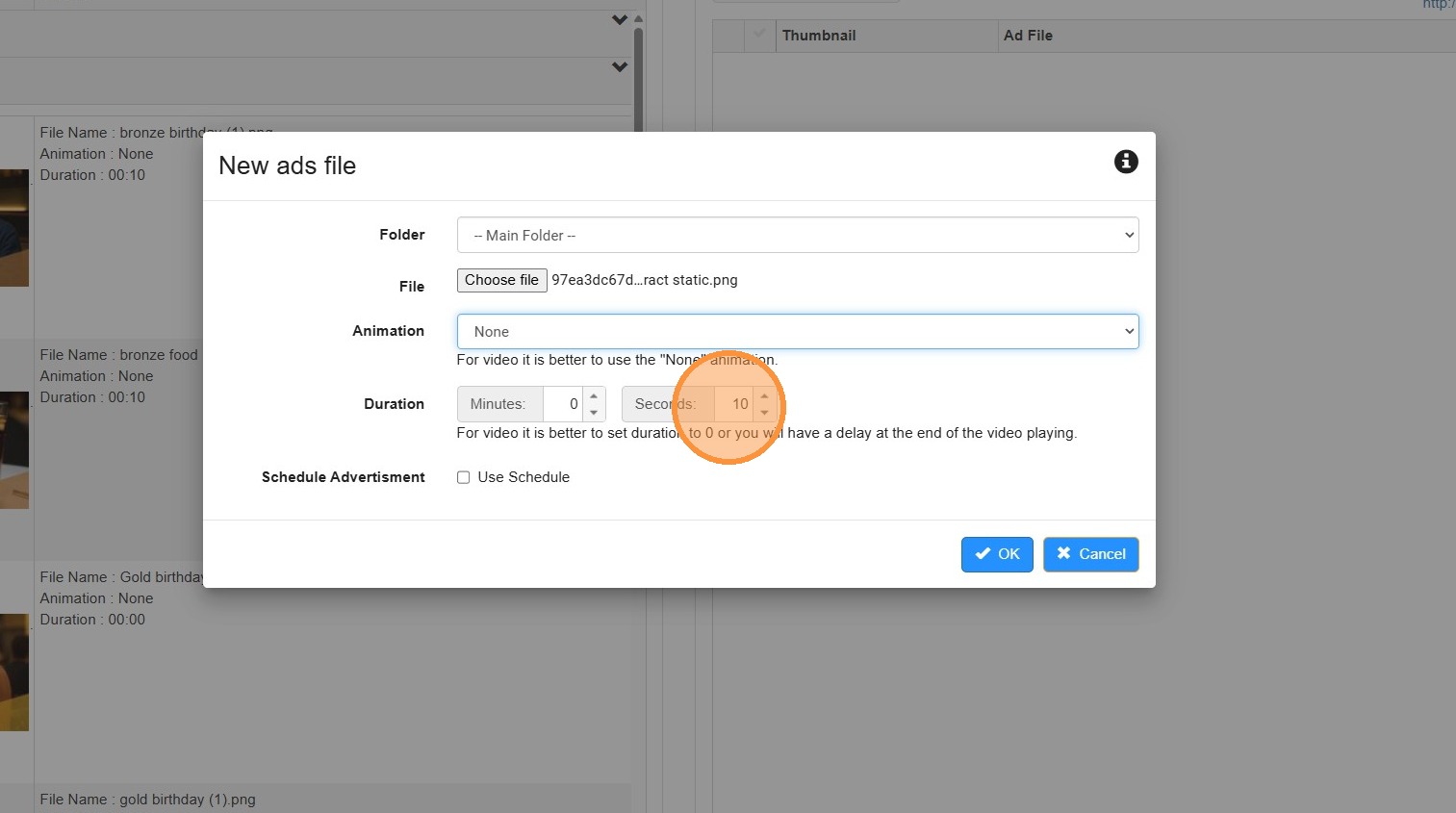
6. Choose the number of seconds you wish this advertisement to appear before transitioning to the next image.
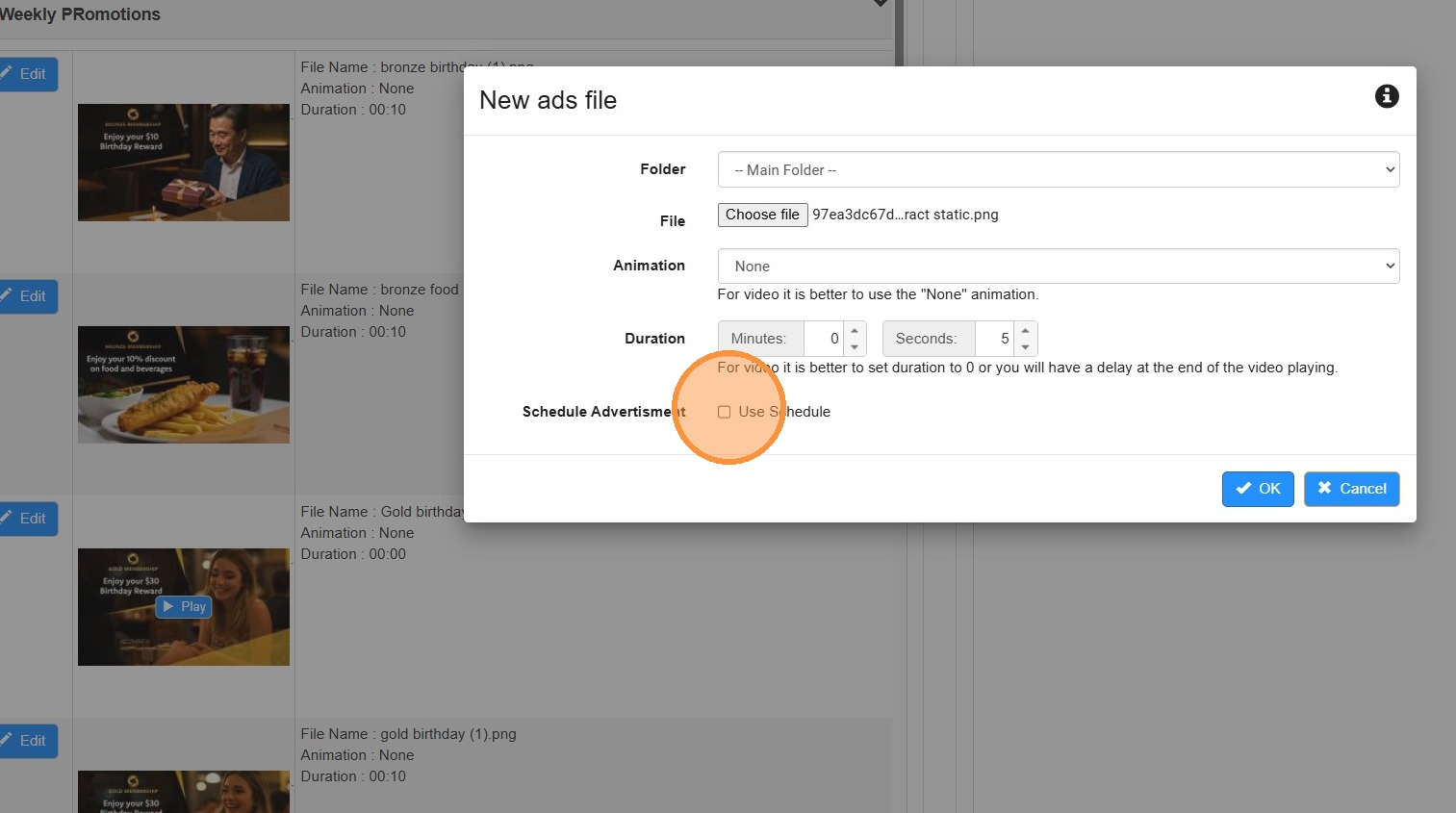
7. If your advertisement is related to an event, or promotion, you may want to set activation and deactivation dates to the content. You do this by ticket the 'Use Schedule' option.
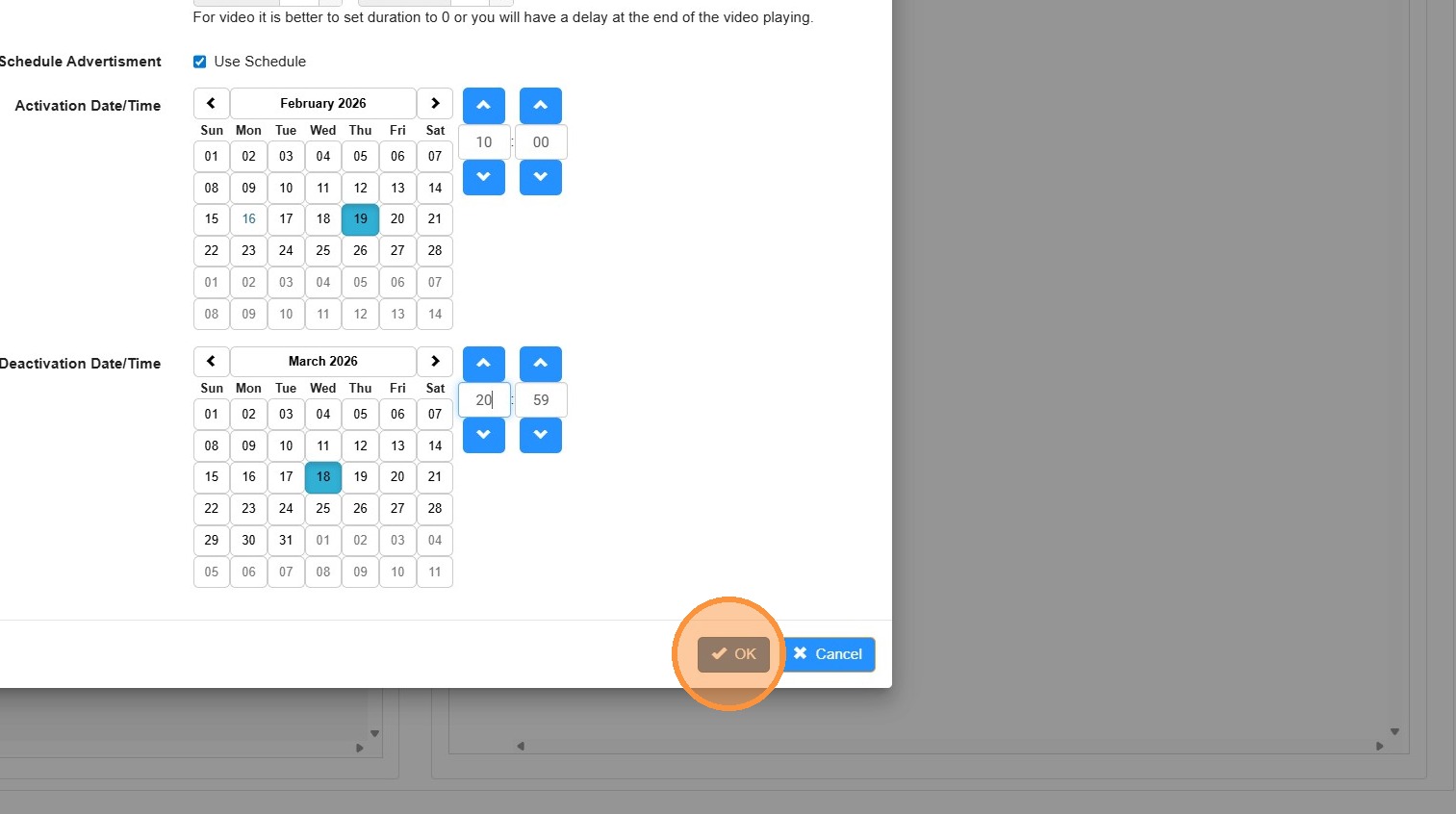
8. Select the start and end date for the advertisement. Once confirmed press OK
9. At this stage the artwork is uploaded into the content manager. In order to publish the artwork, you need to add the artwork to a playlist.
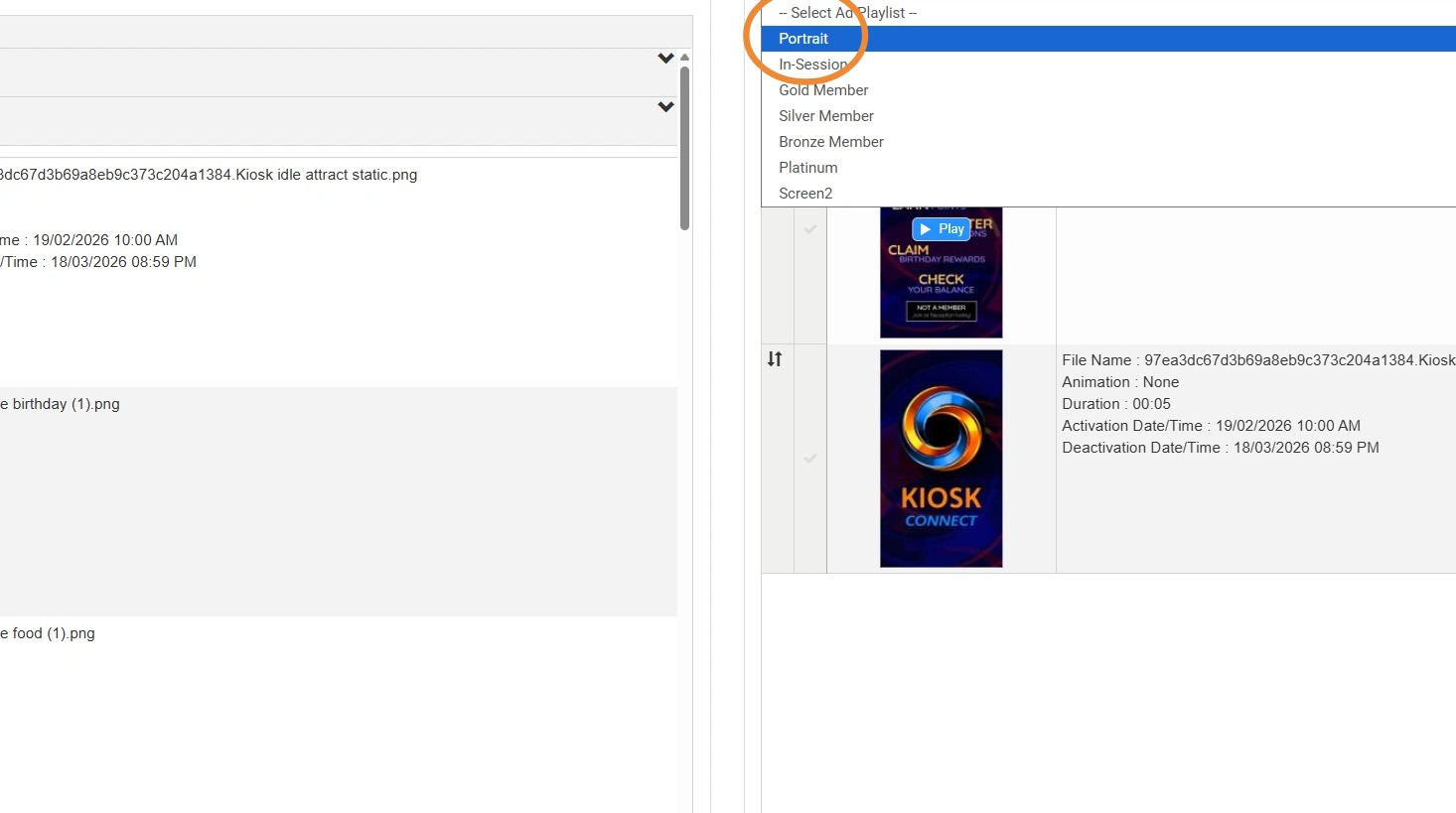
10. Select the playlist you want the image to appear in. In this case we use the default "Portrait" option.
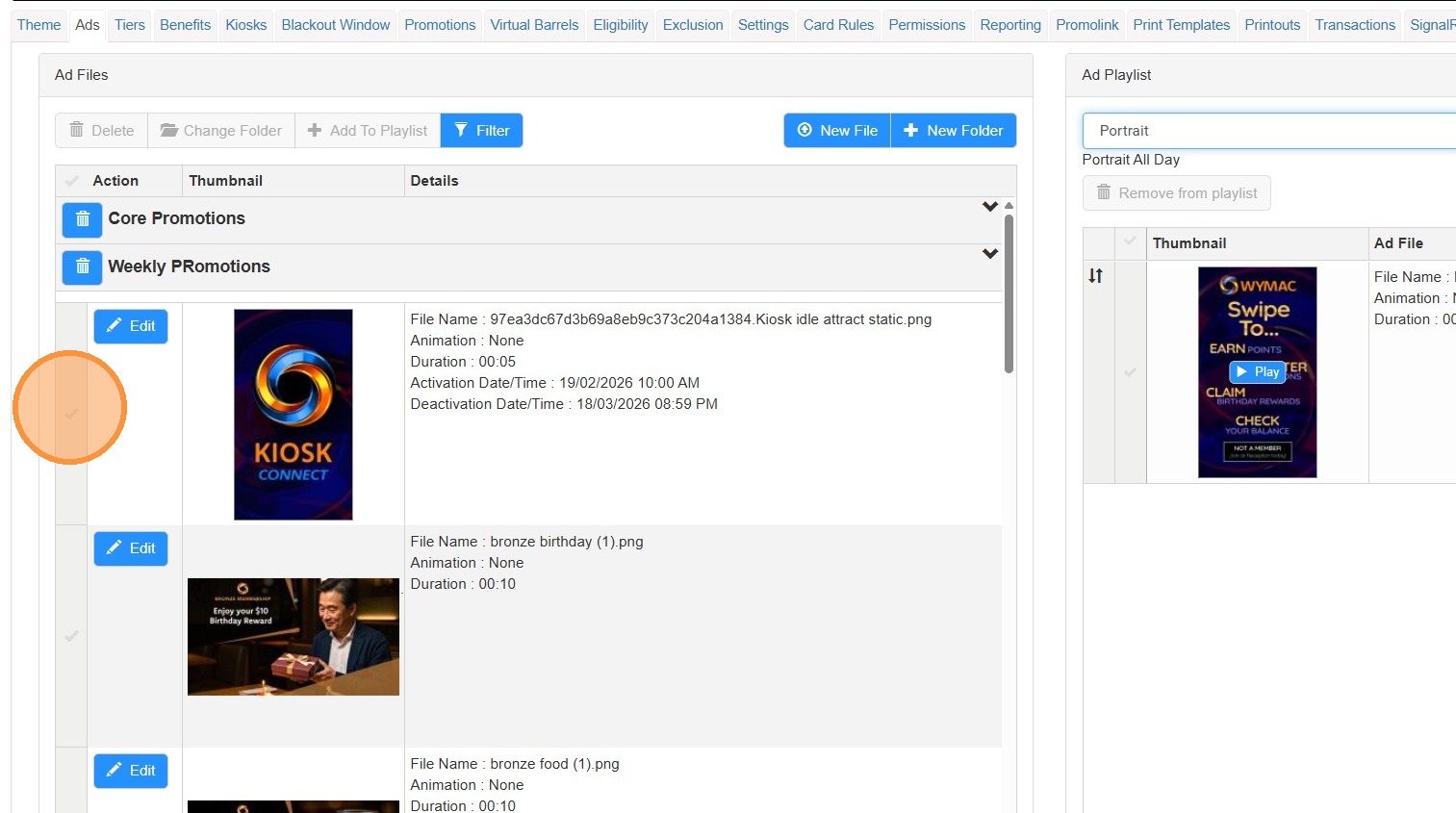
11. Next to the recently uploaded image, click on the grey tick box to select the image. You can also select multiple images if needed.
12. Click "Add To Playlist"
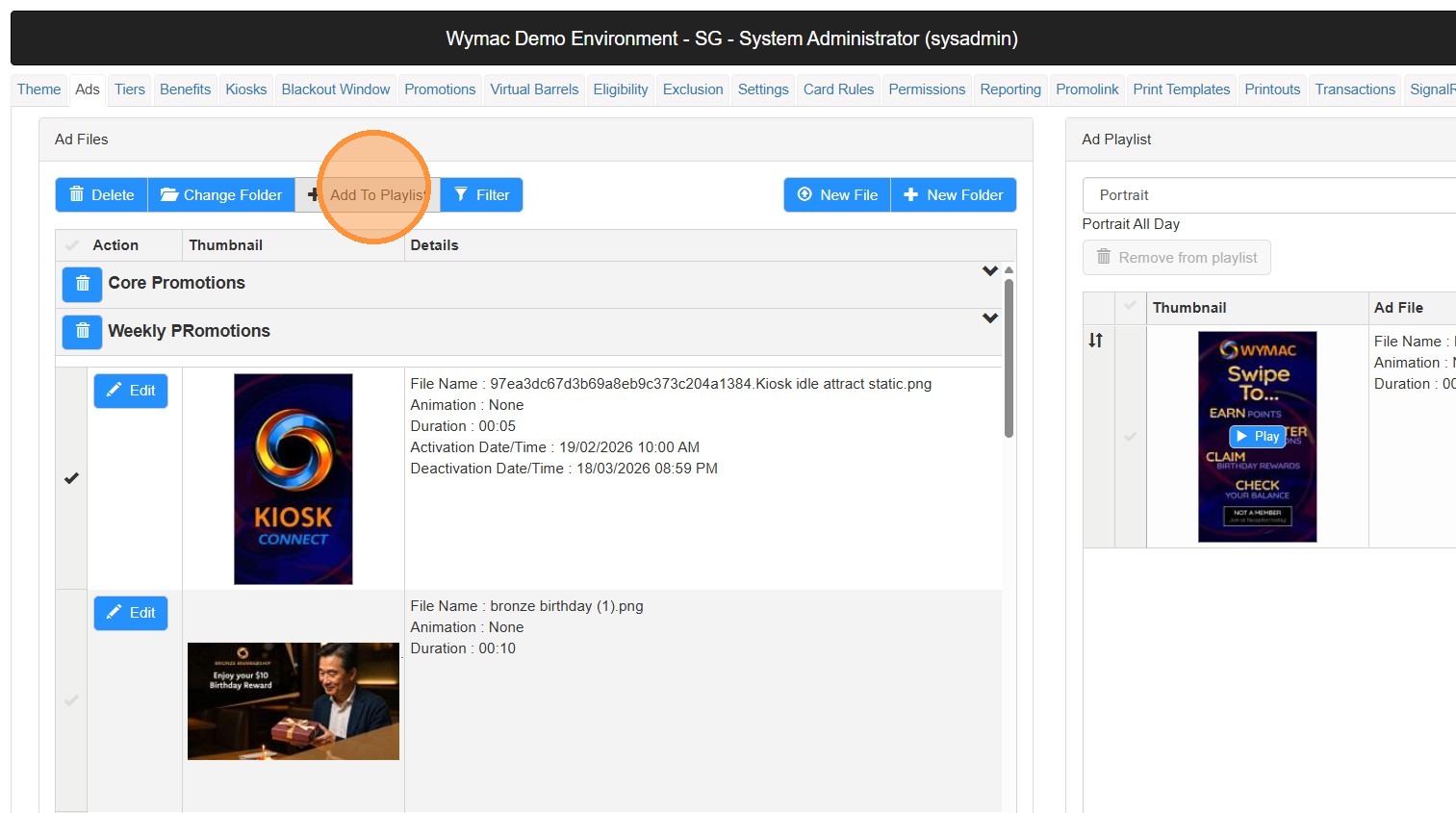
13. The Image has been added to the playlist, and will start appearing on the Kiosk immediately.